Tools: equalizer
Oscine 1.1 adds a parametric equalizer. You'll find it under Tools → Equalizer, and the switch at the top left turns it on and off. Switching it off leaves your curve in place, so you can flip back and forth to hear the difference.
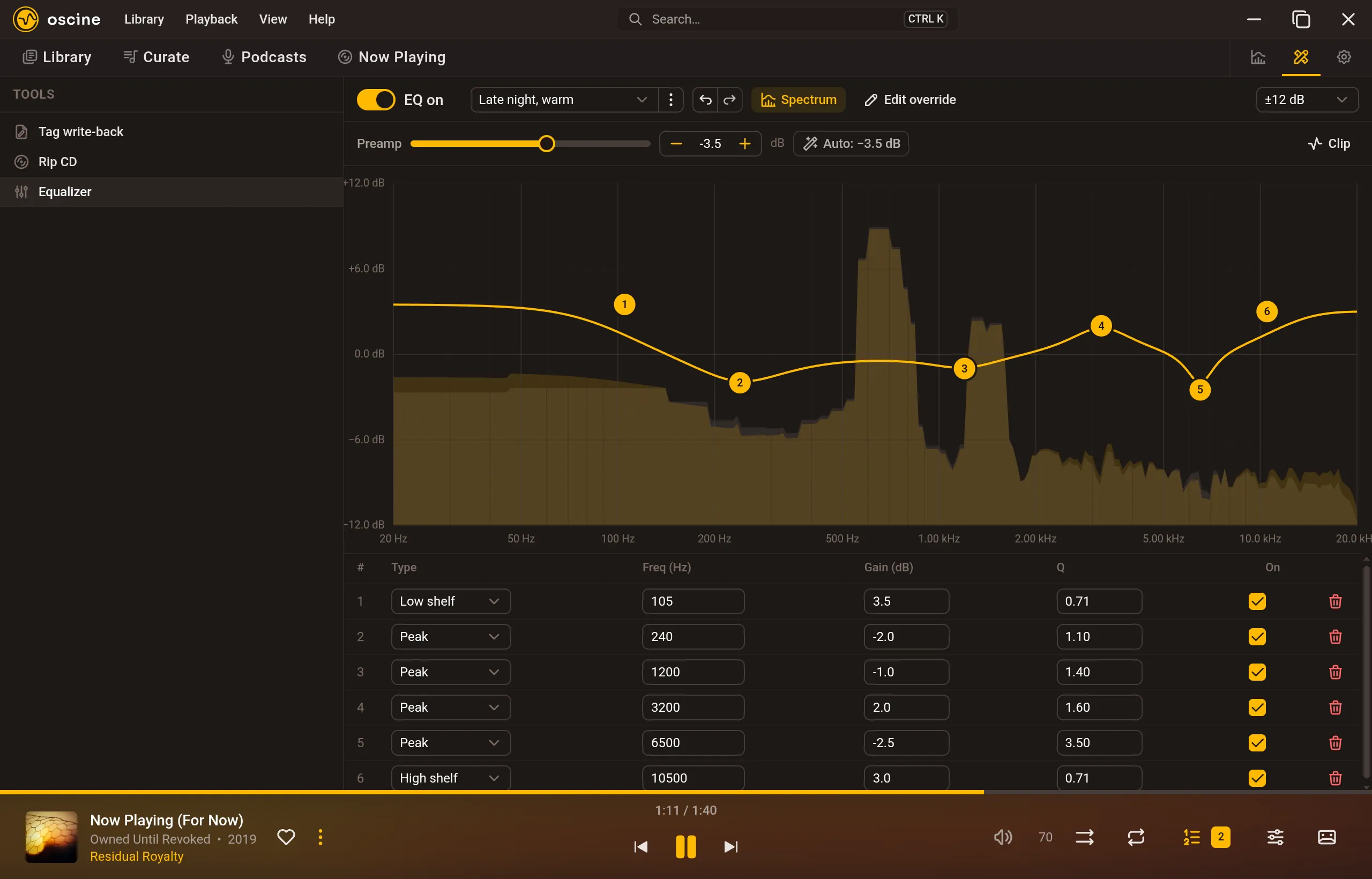
Shaping the curve
Each numbered handle on the graph is a band. Drag a handle left and right to move its frequency, and up and down to change its gain. Scroll over a handle to make it narrower or wider (its Q), and right-click it for more options. Double-click an empty spot on the graph to add a new band there, up to twelve in total.
If you'd rather type exact numbers, the table under the graph lists every band with its type, frequency, gain, and Q. Each band can be a peak, a low or high shelf, a low or high pass, or a notch, and the checkbox on each row turns that band off without deleting it.
Turn on Spectrum to see your music's frequencies moving behind the curve as it plays. The ±12 dB menu on the right changes the graph's vertical scale if you need more room. Undo and redo sit next to the preset menu, and Ctrl+Z / Ctrl+Shift+Z work too.
Keeping it clean
Boosting frequencies makes the signal louder, and too much of that distorts. The Preamp slider lowers everything going into the EQ to make room. Click Auto and Oscine sets the preamp to just cancel out your curve's biggest boost. If the output does clip, the Clip indicator on the right lights up.
Presets
Once you have a curve you like, open the menu next to the preset selector and choose Save as… to give it a name. The same menu has Rename, Delete, and Reset to flat. Pick any saved preset from the selector to load it.
That menu is also where you bring in curves from elsewhere:
- Load device… opens a searchable list of 736 headphone and IEM profiles by oratory1990, via AutoEq. Find your model and Oscine loads its correction curve.
- Import text… takes a parametric EQ profile in the AutoEq or Equalizer APO text format. Paste it in and the bands fill in for you.
Presets for albums, artists, and playlists
Some records just sound better with their own curve. Right-click an album or artist in the library sidebar, or a playlist on the Curate rail, and choose EQ preset to pick one of your saved presets. From then on it switches in whenever you play music from there, and choosing None removes it.
The Assigned to list in the Equalizer pane shows every assignment you've made, and you can remove any of them from there. Turn on Edit override to tweak the assigned curve for what's playing without touching your main one. If you move the curve with it off, Oscine pauses the assignment so your change sticks, and a banner lets you Resume it when you're done.